Turn your next video conference into an Ann Arbor winter wonderscape with UMSI’s new seasonal Zoom backgrounds

Wednesday, 12/22/2021
If you’re in the doldrums staring down rows of blurred backgrounds in your Zoom meetings, bring the A2 winter spirit with UMSI’s new seasonally themed campus virtual backgrounds.
In 2020, UMSI created a set of seven virtual winter-themed backgrounds, including scenes of a snow-covered Arb, Nickels Arcade draped in garlands and a frosty North Quad.
This year’s update includes the Huron River framed in snow-laden branches, the First National Bank Building bathed in maize and blue, and Main Street on a quiet, snowy night.
Zoom’s virtual background feature has proven to be a popular and important tool throughout the COVID-19 pandemic, helping users to protect their privacy and personalize their look in virtual meetings and classes.
Download all of UMSI’s winter Zoom backgrounds here: https://myumi.ch/488r3
To use the backgrounds:
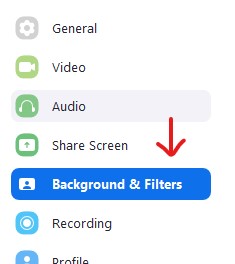
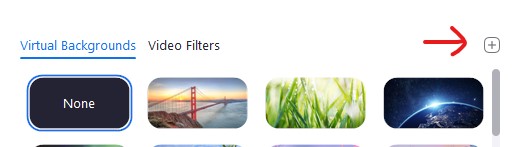
In Zoom, click the gear icon to view your preferences and select the “Background and Filters” option. You will see a selection of default options, and a "+" button above the top right option. Click it to select and upload your selection. Your new background is all set!